Each section says what the feature is for, how it works in practice, and what it doesn't do yet. The Android app does the fieldwork; the web dashboard is for managing teams from the office.
Jobs
Create a job in a few simple steps
Planning work shouldn't need a training course. Whether it's a restock, windblow clearance or a tree inspection, every job is created the same way, with the same steps and buttons in the app and the web dashboard.
How it helps
Pick the type of work from clear cards, grouped into planting, cutting and clearance, vegetation, surveys and inspections, and other work. Each step asks only what that kind of job needs, with examples, and the last step shows everything with a Change link before you create it. The Jobs page lists every job with filters such as Needs attention and Not assigned.
In practice
Choose the type of work.
Give it a name and say what needs doing.
Mark the spot, draw the area, or use where you're standing.
Choose the team, the project and who does it.
Check it and tap Create job.
Worth knowing: in the app, the job is saved on the phone first and reaches the team at the next sync. Starting a new project from the walkthrough needs a signal.
Tree planting
Planting jobs that hold everything about the job
A restock or new-planting job usually lives in several places: a map, a species list from the client, a rate agreed on the phone. ForestrPro keeps them together in one job, on the planter's phone.
How it helps
Each job has a reference, a site, its species with planned numbers, the agreed rates and its own map: the planting area, the planter's movements while working, and refill points for collecting more trees. A job can belong to a team project, so the office sees it too.
In practice
Create the job and choose its project.
Add species, planned counts and rates.
Mark the planting area and refill points on the job's map.
Start a session when you start planting.
While a planter works with Track my movements on, the job's map shows their route as it grows: the live line on the planter's own screen, and in the dashboard for the team. Finished sessions stay on the map in their own colour, so you can see what's been covered.
Tree planting
Counts, sessions and rates per tree
Paid-by-the-tree work needs counts that both sides trust. ForestrPro records them as the work happens instead of reconstructing them at the end of the week.
How it helps
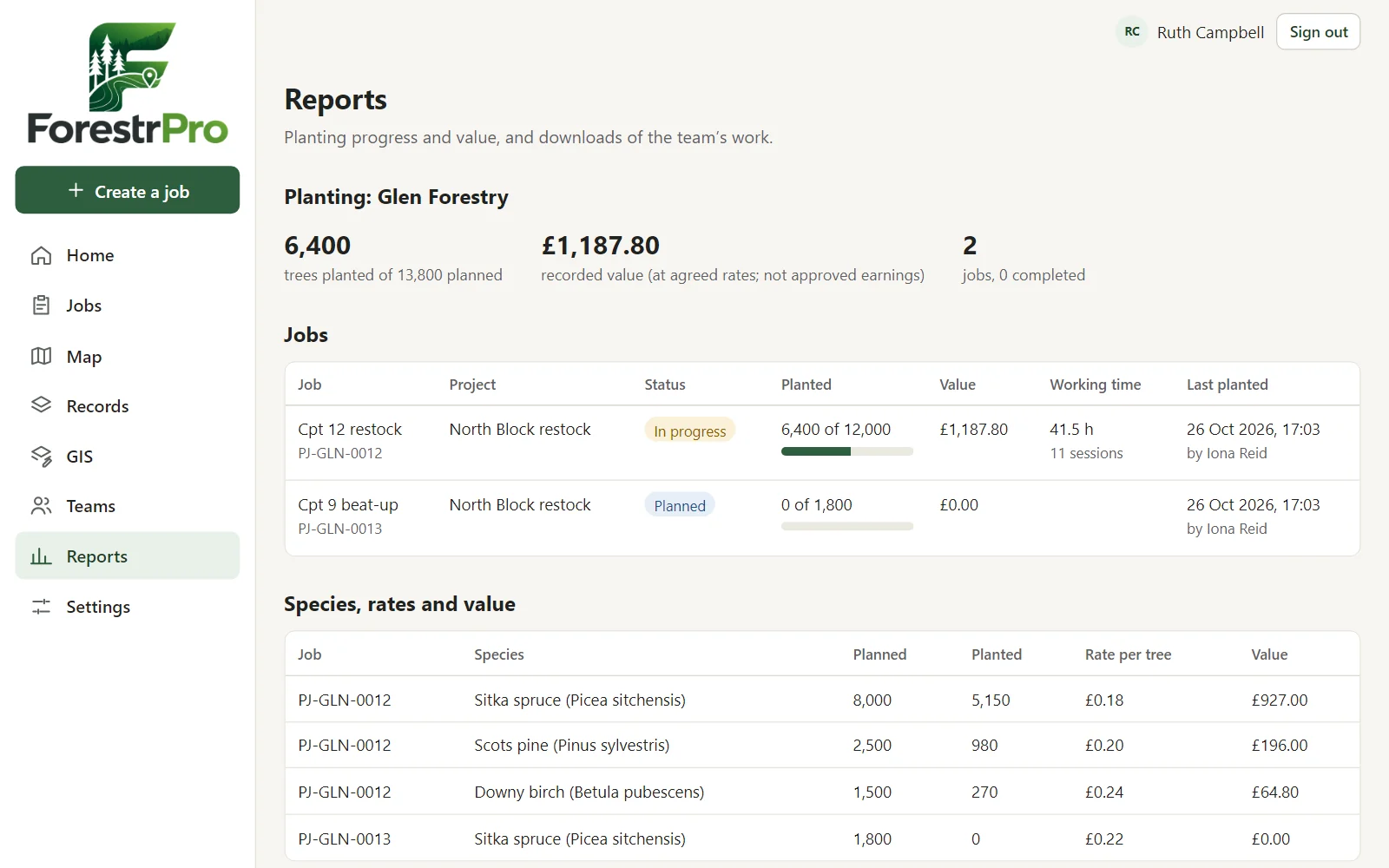
Planting sessions record working time, pauses and trees planted per species. ForestrPro totals them for the day, the week and the job, with trees per hour, and calculates the recorded value: trees × the agreed rate.
In practice
Start, pause and resume a session as the day goes.
Record trees per species as you go.
Check today's and this week's totals on the Planting screen.
Jobs in a project appear in the dashboard's planting report.
The dashboard's planting report, shown with test data.
Worth knowing: recorded value is a calculation from the rates you enter. It isn't approved earnings, a payslip or an invoice, and ForestrPro doesn't handle payments.
Tree cutting
Cutting and harvesting work as tasks
Who is working where, on what, and how far they've got is hard to follow across a large site. ForestrPro turns each piece of work into a task with a place on the map.
How it helps
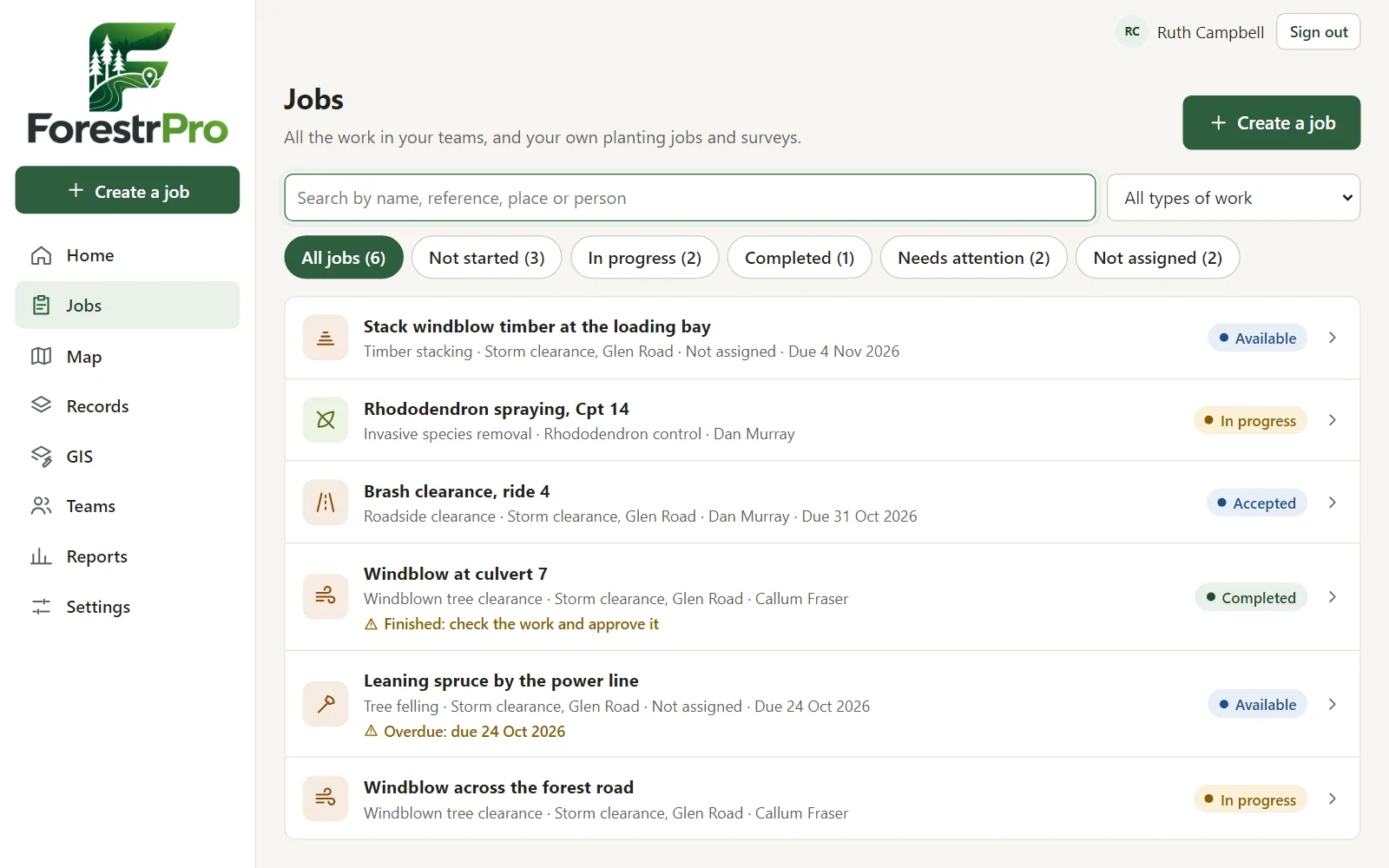
Tasks cover felling, harvesting, forwarding, timber stacking, roadside and vegetation clearance, invasive species removal, woodland maintenance and tree inspection. Each has a priority, a location or area, workers, progress, notes, photos and a full history. Timber stacks are recorded with their location.
In practice
Create a task, or raise one from a mapped tree or hazard.
Assign it, or leave it available for the crew to claim.
The worker accepts, starts, updates progress and completes it.
A manager approves it or reopens it with a reason.
Tasks in the dashboard, shown with test data.
Tree cutting
Windblown trees, from report to cleared
After a storm, fallen trees are reported by whoever finds them, in whatever way they can. ForestrPro gives each one a mapped record that can become a clearance task.
How it helps
Mark windblown trees, blocked roads and other hazards on the map as you find them, with photos. The Cutting module's "From records" view lists recorded trees and hazards needing work, so clearance tasks can be raised from them, carrying their location and reference.
In practice
Drop a windblown-trees or blocked-road pin where it is.
Raise a windblown clearance task from it.
Assign the crew and follow progress.
Review the completed work with its photos.
Worth knowing: ForestrPro records and organises the work. It doesn't replace your risk assessments, safe systems of work or the judgement of the people on site.
Timber
Timber tariffing: standing volume from trees and plots
Before felling or selling a stand, you need a defensible estimate of what's in it. ForestrPro follows the established Forestry Commission tariff methods, and records every tree and sample plot it's based on.
How it helps
Set up a survey in the dashboard and record trees and sample plots on the phone, with or without a signal: diameters, heights and positions. ForestrPro works out tariff numbers and volumes by species, the stand estimate with its sampling error, and an indicative value from prices you enter. Each calculation is stored with the method, tables and measurements it used.
In practice
Create the survey and choose the method.
Measure trees and plots in the forest; they sync when there's a signal.
Calculate, and check what's estimated or provisional.
Download the PDF report and the trees as CSV.
Worth knowing: tariff volumes are estimates for planning and valuation, not a measured outturn. Reference tables you import start unverified and must be checked and approved before use.
Timber
Felling licence maps from your compartments
A felling licence application needs a map drawn to the authority's standard, and in England, spatial data in a precise format. ForestrPro makes both from the compartments you already have.
How it helps
Tick the compartments and their operations (clearfell, thinning, restocking and so on), set the access point, and download a true-scale application map as PDF or JPEG with a legend, north arrow, scale bar and OS grid references. For England, ForestrPro makes the zipped shapefile Felling Licence Online takes, and checks the Forestry Commission's rules first. Volumes from tariffing surveys can go into the felling table.
In practice
Open Reports → Felling licence maps and choose the forest.
Choose England, Scotland or Wales.
Tick the compartments, choose each operation and set the access point.
Download the map, the spatial data and the felling table.
Worth knowing: ForestrPro prepares the maps and data. You submit the application, and the authority decides on it.
Mapping
Offline forestry maps
Many forests have no mobile signal, and a map that needs the internet is no use there. ForestrPro prepares maps on the phone so they work without a connection.
How it helps
Import a georeferenced PDF (GeoPDF) or a GeoTIFF, such as an aerial photo, or a ZIP of several, and the map is placed at its real position, including British National Grid maps, and prepared on the phone for offline use. Forests, compartments and your own records are stored on the phone too. If a map sits slightly off, choose another of its frames, or drag it into place by hand.
In practice
Import the PDF or GeoTIFF in the Maps library while you have signal.
Wait for "Ready offline".
Open the map in the forest: your maps, layers and position all work offline.
Worth knowing: online base maps (streets and terrain from OpenFreeMap) need a connection. A GeoTIFF must be in British National Grid, Irish Grid, UTM, Web Mercator or WGS84; one in another coordinate system is refused, with a note to save it in QGIS as EPSG:27700. Very large GeoTIFFs are prepared at the detail the phone has room for.
Mapping
GPS position, tracks, measuring and navigation
Knowing exactly where you are, where you've been and how to reach the next point matters more in a forest than almost anywhere.
How it helps
The map shows your position with its accuracy and satellite count, and coordinates in British National Grid or latitude and longitude. Record a GPS track (pause and resume it) and export it as GPX. Measure distances and areas, and navigate to any point with distance and direction.
In practice
Tap your position to follow it.
Start a track at the beginning of a walk-over.
Measure a boundary or an area on the map.
Choose a point and navigate to it.
Worth knowing: accuracy depends on the phone's GPS and the canopy. ForestrPro shows the reported accuracy rather than hiding it. Your tracks stay on your phone unless you export them.
Mapping
Trees, plants and bushes on the map
Individual trees, invasive plants and shrub populations need to be found again: for inspection, treatment or removal.
How it helps
Record trees, bushes and shrubs, plants and other vegetation as points or areas, with species, size, condition, notes and photos. Each record gets a reference, and its own layer on the map. Pins cover the rest of the site: hazards, gates, bridges, culverts, loading points, extraction routes and environmental restrictions.
In practice
Stand at the tree or plant and add it at your GPS position, or at the crosshair.
Fill in what you can see; add photos.
Find it again later from the map or the Records list.
Mapping
Vegetation inspections and history
Whether a treatment worked, or a population is spreading, only shows over time. ForestrPro keeps every visit rather than overwriting the last one.
How it helps
Each record has a history of inspections: who looked, when, what they saw, the management action and photos. Vegetation surveys group a day's records so they can be reviewed and exported together.
In practice
Start a survey for the visit.
Add new records, or inspect existing ones.
Finish the survey and export it: CSV, GeoJSON and the photos.
GIS
GIS import and export
Forestry data already lives in GIS: boundaries, sample points, constraints. ForestrPro reads it, and gives the crew's records back in the same formats.
Import
GeoPackage, Shapefile, GeoJSON, KML and KMZ, GPX, CSV with latitude/longitude or easting/northing, and ZIPs of any of these. Each layer is previewed with its coordinate system and feature count before you import it, and each feature's own ID is kept.
Export
GeoPackage (with a QGIS project), Shapefile, GeoJSON and KML, in British National Grid or WGS84. Tracks export as GPX; vegetation records as CSV with their photos.
Worth knowing: coordinates are transformed properly between systems. A layer in a coordinate system ForestrPro doesn't recognise is refused rather than guessed. GeoTIFF rasters go to the Maps library.
GIS
Working with QGIS
For many forestry teams, QGIS is where maps are made and data is checked. ForestrPro is designed to sit beside it rather than replace it.
How it helps
Export a GeoPackage together with a ready-made QGIS project: open the .qgs file and the layers appear with their colours. In the other direction, pick a QGIS project (.qgs or .qgz) with its data files, and ForestrPro imports its vector layers with their names and colours, including categorised and graduated colours (each species or age class in its own colour). Its GeoTIFFs go to the Maps library for offline use, and its XYZ, WMS and WMTS layers are added as online layers, shown when there's a signal.
In practice
Prepare boundaries and layers in QGIS.
Import the project and its data on the phone.
Record in the field.
Export and open the result in QGIS.
Illustration: compartment boundaries, a vegetation layer and a hazard layer.
Worth knowing: on the phone, a layer's colours come across, but not its symbols, line widths or labels; a rule-based or expression style is shown in one colour. Online layers aren't kept for offline use, must use https, and a WMTS layer needs a Web Mercator tile set. WFS and database (PostGIS) layers, and rasters other than GeoTIFF, aren't imported: each is listed with the reason. The Desktop GIS carries over more of a project's style, including symbols and labels.
Teams
Team management
Contract crews change from job to job, and not everyone should be able to change everything.
How it helps
A team has owners, managers and members. Owners invite people by code, link or email; invitations are single-use, expire, can be withdrawn and can be locked to one email address. Managers run projects; members do the work. Every permission is checked on the server. Each person can add a profile (photo, job title, phone) that their teammates see, and the owner can add the team's logo.
In practice
Create an account and a team.
Invite the crew; they accept in the app.
Create projects: planting, cutting, mapping and survey, or mixed, with site information, hazards and the site map.
Teams
Shared maps and task assignments
A crew can only work from the same picture if everyone has the same maps and the same list of jobs.
How it helps
Managers share map data with a project: GIS layers, forestry records and GeoPDF base maps. Members download them and prepare them for offline use with one tap. Tasks sync both ways: the office assigns, the field reports progress and photos, and changes made offline are sent when there's a connection.
In practice
Share the project's maps and layers from the app.
Members open the project and prepare it for offline.
Assign tasks; members see them on their map.
Progress, notes and photos come back as phones sync.
Worth knowing: if two people change the same task while offline, the server's rules decide: a change that's no longer allowed is refused and shown on the phone, never silently lost.
Teams
Live team operations
On a big site, knowing who is out and roughly where they are helps with coordination and peace of mind, as long as it's done with consent.
How it helps
Members who switch on location sharing appear on the team's live map for owners and managers, in the app and the dashboard. Each position is labelled live, delayed or no signal according to when it arrived, so an old position is never shown as live. Members see only themselves.
In practice
A member starts sharing with one team; a notification shows while it's on.
Owners and managers open Live Operations.
The member stops sharing whenever they like.
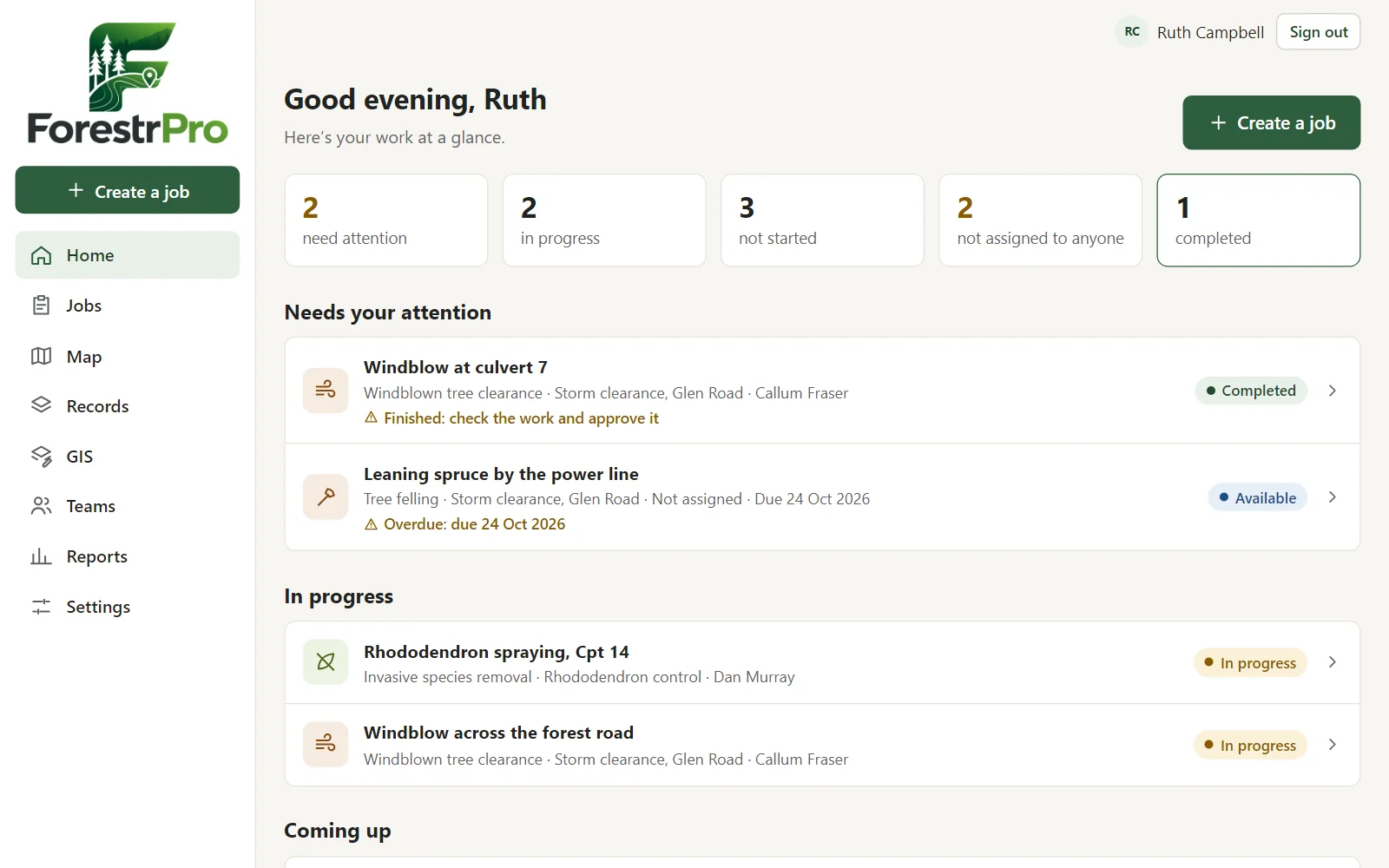
The dashboard's Home, shown with test data.
Worth knowing: joining a team never shares your location. Positions are kept for 30 days and then deleted. Live positions aren't guaranteed to be real time; they depend on the phone's signal. For check-ins and alerts when someone works alone, see lone working.
Safety
Lone working check-ins, even out of signal
Forestry work is often done alone, far from a road and out of signal. Lone working makes sure someone notices if a check-in is missed.
How it helps
Start lone working with how often you'll check in. The phone reminds you; tap I'm OK, even from the notification. Miss a check-in and the team's owners and managers, and your emergency contact, are emailed with your last position, repeating until someone acknowledges it. SOS alerts them at once. With no signal, check-ins are kept with their GPS position and time and sent later, and you can check in for longer before going out of signal.
In practice
Start lone working from Home in the app, or in the dashboard.
Check in when reminded.
Going out of signal? Check in for longer first.
Managers acknowledge alerts in the app or dashboard.
Worth knowing: alerts depend on what reaches the server, so someone out of signal past their check-in will trigger one (the email says they may just be out of signal). Lone working supports your safety procedures; it doesn't replace them or the emergency services.
Safety
Risk assessments, read and signed by the crew
A risk assessment only works if the people on site have read it. ForestrPro puts each one where the work is, and keeps a record of who has read which version.
How it helps
Owners and managers write a site risk assessment for each project, and a job risk assessment for individual jobs: hazards scored likelihood × severity, controls, further controls and what risk remains, emergency arrangements and PPE. Or upload your own document (PDF, Word or a photo of a paper one). Everyone in the team reads it on the job's page, even with no signal, and signs; a change is a new version that everyone signs again.
In practice
Create one for the project's site, or for a job.
Start from common forestry hazards, or upload your document.
Publish it: the crew is asked to read and sign.
See who has signed, and print a PDF with the signatures.
Worth knowing: your team writes the assessments; ForestrPro stores, shares and records signatures for them. The common hazards it offers are suggestions to start from, to be checked and scored for each site.
Dashboard
Operational reporting
The office needs a view of the work without phoning round the crews.
How it helps
The web dashboard opens on what needs attention: tasks waiting for review, overdue work, who is out and recent activity. It also has project progress, the planting report with species and rates, records from shared layers, tariffing surveys, felling licence maps, lone working and the team's activity history. It works on a phone too, and can be added to the home screen like an app.
Exports
Tasks and task history as CSV, tasks as GeoJSON for QGIS, members, activity, planting jobs and species with rates, and shared layers and maps, all using the app's own references and statuses.
Want to see it with your own maps?
Tell us about your work and we'll show you how ForestrPro fits.